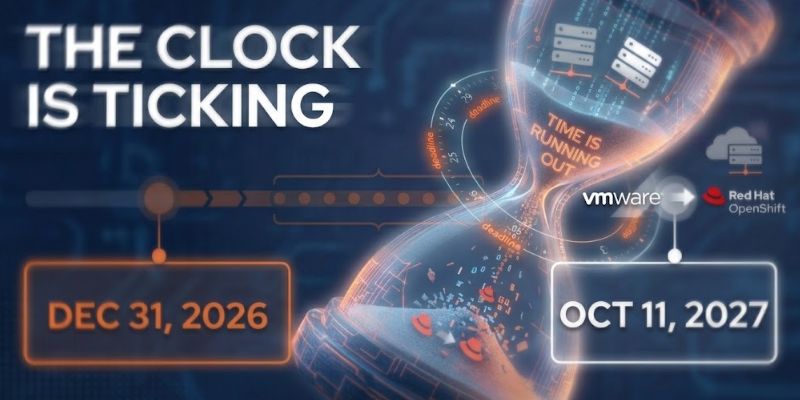

The Microsoft’s WAC VM Conversion tool is genuinely good, genuinely free, and about to hit GA. It is also being oversold. Here is a more detailed walkthrough. VMware migration window is closing fast – and Microsoft just made switching to Hyper-V easier.
Microsoft did something useful. The VM Conversion Extension for Windows Admin Center takes a job that used to mean third-party licenses or hand-rolled PowerCLI scripts and turns it into a guided, browser-based workflow that does online, replication-based migration — source VM keeps running, brief cutover at the end. It is free. And it is maturing fast: Public Preview 2 landed in Q1 2026 with the conversion tool reaching general availability at that milestone, and the full Windows Admin Center “vMode” feature set is targeted for GA in Q2 2026.
So this is not a “the tool is bad” piece. The tool is good. We use it.
Here is the other half of the story: the part you only learn by running real VMware-to-Hyper-V migrations through it, the part that doesn’t make it into the demo where a host goes from fresh install to a running VM in under five minutes. Because the gap between that demo and a 200-VM production estate is exactly where migrations go sideways.
Here are the field notes.
VMware Tools doesn’t remove itself after migration
This is the one that catches people, partly because a lot of write-ups (including, briefly, one of ours, now corrected) said the opposite. Per Microsoft’s current documentation, VMware Tools is not automatically uninstalled after migration. You remove it manually.
On one VM, that is a footnote. On a few hundred VMs, leftover VMware Tools is a real cleanup project that requires manual removal of stale drivers, lingering services, and the occasional weird device-manager artifact. Besides, this is the kind of thing that doesn’t break anything loudly, but degrades the environment quietly. So my tip is: plan the post-migration removal as its own work item, scripted, not as something the tool handles for you.
Dynamic memory gets flattened to static
During migration the tool configures memory as static even if the source VM was set to use dynamic memory. That is a deliberate design choice for stability, but it means your carefully-tuned memory allocations don’t survive the trip.
If you had VMs sized to flex between a minimum and a maximum, they come out the other side pinned. To re-enable dynamic memory afterwards, power the VM off, go into settings, and reset startup memory, min, max, and buffer. Again, trivial per VM, a meaningful checklist item across a fleet, and a nasty surprise if capacity planning assumed the dynamic behavior carried over.
No resync support, so plan your cutover window
The resync option, the thing that would let you reconcile data between the initial replication and a later delta, isn’t currently supported. In practice that shapes your cutover discipline. You don’t get to do a leisurely initial sync, wander off for two weeks, and casually catch up the delta before cutover. Your replication and cutover windows need to be planned tighter than you might assume from the “online migration, minimal downtime” headline.
The 10-VM batch limit is a sequencing problem
The tool migrates up to 10 VMs at a time. That is plenty for a small shop. For a mid-to-large estate it turns migration into a sequencing problem: you batch by application dependency, cluster, or business boundary. Then you need to orchestrate those batches in an order that doesn’t strand a three-tier app with its database on the old platform and its web tier on the new one for a weekend.
That orchestration – what moves with what, in what order, with what rollback – is most of the actual skill in a large migration. The tool executes batches. It doesn’t design your sequence.
WAC migration prerequisites that bite
A few that have caused real friction:
- Change Block Tracking has to be enabled before the sync readiness checks pass. Recent updates improved the pre-check validation here, but if CBT isn’t on, you find out at the wrong moment.
- Secure Boot configuration on a running VM used to fail. The tool now powers the VM off before applying Secure Boot settings; this is a good advancement, but it means a power-state change you need to account for.
- It is on-prem WAC only. This is not an Azure-hosted, click-from-the-portal experience. You are standing up and running Windows Admin Center on-premises.
- Preview-software caveat. This is prerelease tooling that Microsoft explicitly says can change, with limited support obligations until GA. That is improving by the quarter, but “we filed a bug and waited” is not a line item your cutover weekend can absorb.
Why VMware-to-Hyper-V migration takes more than a free tool
None of these shortcomings is a dealbreaker. Every one of them is solvable. Add them up, though, and you get the real shape of a VMware-to-Hyper-V migration: a guided tool that handles the conversion mechanics beautifully, wrapped in a layer of planning, sequencing, cleanup, and capacity work that the tool doesn’t touch.
That is exactly the layer where migrations run 30–50% long, where cutover outages happen, and where the “we’ll just use the free tool” plan quietly becomes a six-month distraction. The tool genuinely lowered the barrier for small, simple environments. However, it did not eliminate the engineering judgment that mid-to-large environments require. It just moved that judgment from “how do we convert a VM” to “how do we orchestrate hundreds of them without breaking anything.”
The smartest move we see teams make is to run a proof-of-concept now, while the October 2027 VCF support deadline still leaves runway. Start with non-critical workloads. Validate the pipeline. Find your own version of these gotchas on VMs that don’t matter and build the playbook before you point it at the ones that do.
If you want a place to do exactly that, our Proof of Value environment is purpose-built for it. Test the WAC conversion tool and the other VMware alternatives hands-on, on real workloads, before you commit a strategy. For the full platform decision framework, our Life After VMware 2026 guide walks through the options, and our earlier breakdown of VMware to Hyper-V migration in 2026 covers the tool itself in more depth. Finally, if you’d rather have an experienced team run the sequencing and cleanup with you, this is the kind of work we do every week.
The demo takes five minutes. The migration takes judgment. Plan for the second one.
Frequently asked questions
Does the Windows Admin Center VM Conversion Extension remove VMware Tools automatically?
No. Per Microsoft’s documentation, VMware Tools is not uninstalled during a VMware-to-Hyper-V migration. You remove it manually after cutover, ideally with a script when you’re working across a fleet.
Is the VMware-to-Hyper-V conversion tool free?
Yes. The VM Conversion Extension for Windows Admin Center is free, replacing the third-party licenses or custom PowerCLI scripts that VMware-to-Hyper-V migrations used to require.
How many VMs can the tool migrate at once?
Up to 10 at a time. For mid-to-large environments that batch limit makes sequencing, i.e., deciding what moves together, in what order, with what rollback, the real planning work.
Does the migration preserve dynamic memory settings?
No. Memory is set to static during migration even if the source VM used dynamic memory. You re-enable dynamic memory afterward by powering the VM off and resetting startup, minimum, maximum, and buffer values.
Is the VM Conversion Extension generally available?
The conversion tool reached general availability with Public Preview 2 in Q1 2026, and the full Windows Admin Center “vMode” feature set is targeted for GA in Q2 2026. Confirm the current status against Microsoft’s documentation before you plan around it.

The tool is ready. What about your migration plan?
iShift runs VMware-to-Hyper-V and Azure Local migrations end to end: assessment, sequencing, cutover, and the cleanup nobody puts on the slide.